Upload your photo
Choose one JPG, PNG, or WebP, up to 20 MB and 32 megapixels. You can upload and select before signing in; the photo stays in your browser at this stage.
 objectremover.im
REMOVE UNWANTED OBJECTS FROM PHOTOS ONLINE
Use the free AI object remover online: upload a photo, paint over what you don’t want, and let AI fill in the selected area.
No description needed—your selection says it all.
YOUR PHOTO. JUST A LITTLE CLEANER.
Use the AI object remover to select a distraction directly on your photo. Brush slightly beyond the edges and include its shadow for a more complete repair.
This before-and-after uses the same free object remover available in the editor.
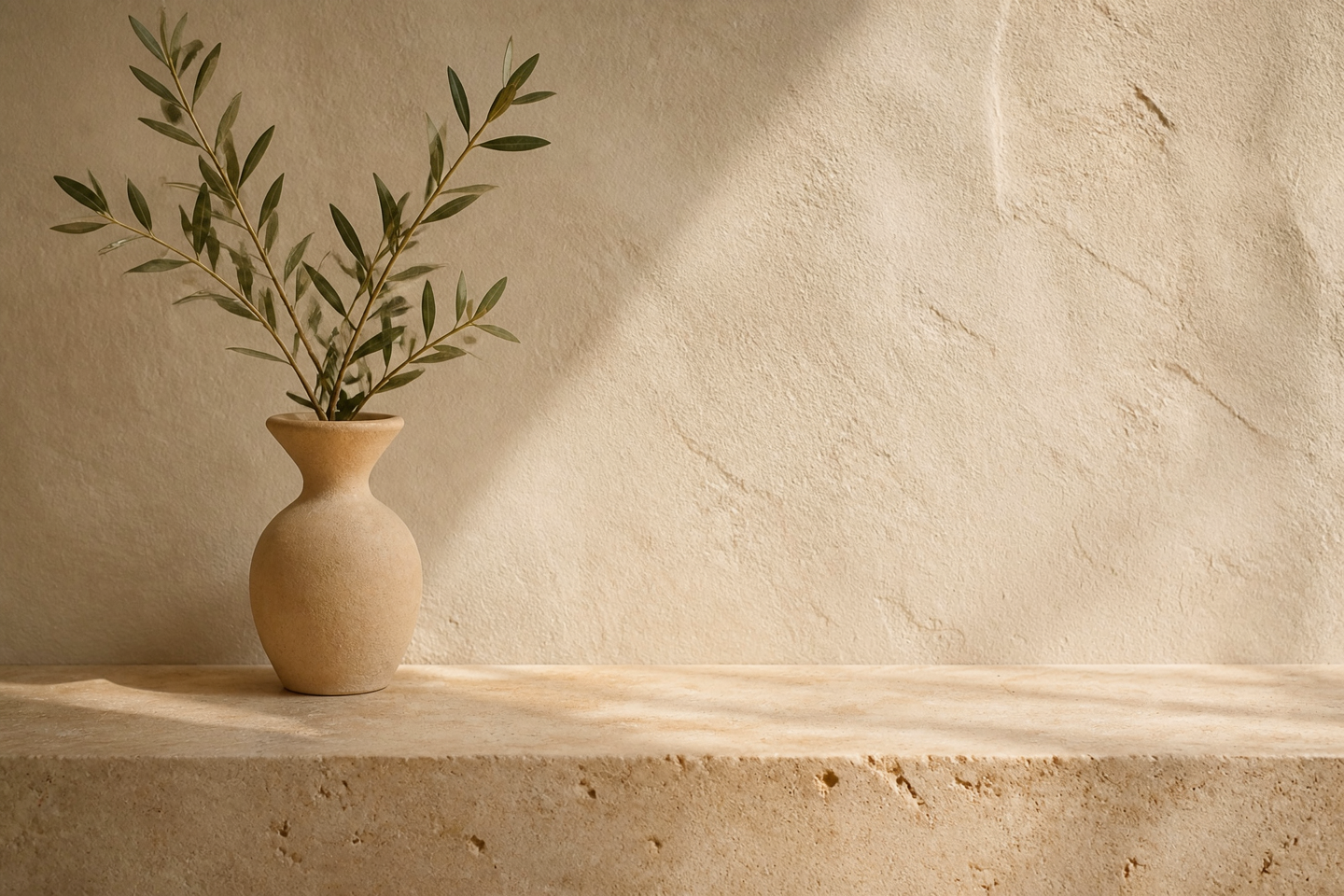
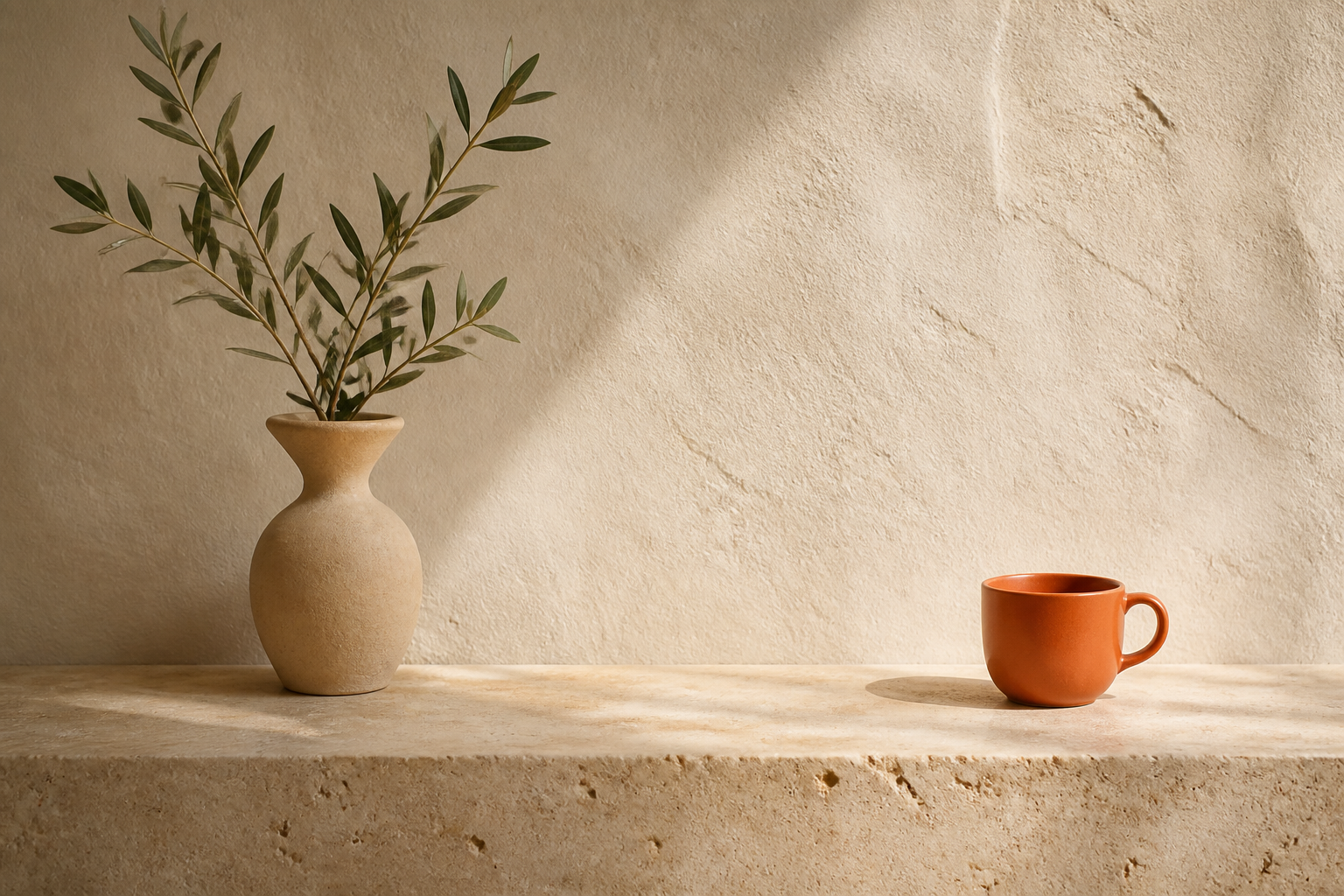 AFTER · A LITTLE MORE SPACE
THREE SMALL STEPS
Start with one distraction.
Paint the object, not the whole photo.
Choose one JPG, PNG, or WebP, up to 20 MB and 32 megapixels. You can upload and select before signing in; the photo stays in your browser at this stage.
Paint the whole object, including its edge and shadow. Change brush size, erase a mistake, undo a stroke, or zoom in for detail.
Sign in when ready, review the 3-credit price, and remove the selection. Compare the original and result, then download the PNG. Edits use a prepared image up to 1536 pixels per side.
MAKE ROOM FOR WHAT MATTERS
An online object remover is a useful starting point when a good photo has one thing too many. Keep your original and decide whether the edit still feels right.
Try the free object remover onlineBrush over a stray cable or prop with the AI object remover. Check product edges, labels, and shadows carefully.
Select a background passerby or rubbish bin directly on the photo. Keep your subject, then inspect faces and reconstructed scenery.
Remove a cup or small item from an interior photo you own. Use a smaller brush near edges and include the item’s shadow.
A FEW THINGS WORTH KNOWING
The practical details before you start.
Plans & credit costs ↗Upload a photo, brush over the unwanted object, and click Remove selected area. The AI object remover receives the source image and a matching black-and-white selection mask. It generates replacement detail in the selected region. You can compare and download the result.
No. Painted selection is the main control. Brush over the object and its shadow; the object remover uses the surrounding image to guide the repair. Text-guided filling is planned as a separate advanced option.
Use the eraser to subtract from the selection, undo or redo individual strokes, or clear the selection and start again. Change brush size for small details. Zoom in, then use Move to reach the area you want to paint. Selection coordinates stay aligned with the image.
Yes. Upload from your phone and paint with one finger. Use the zoom buttons for close-up work and Move to pan the photo. Avoid painting with multiple fingers at once.
Yes. New accounts receive 3 welcome credits, enough to use the free object remover for one removal. Uploading and selecting do not use credits. Sign in only when ready to process; the exact price is shown before submission.
Upload JPG, PNG, or WebP up to 20 MB and 32 megapixels. The editor prepares a PNG canvas with each side between 256 and 1536 pixels, adjusting dimensions slightly to multiples of 8. Very wide or tall images over 6:1 need cropping first. Downloads follow this prepared size, not necessarily the original resolution.
No. Replacement areas are generated, not recovered from behind an object. Inspect the result for imperfect texture, shadows, or changes near the selection edge. Never present an altered photo as unedited evidence.
A local draft of your prepared photo, selection, and description is kept in this browser for up to 24 hours so sign-in or a reload does not erase your work. Use Discard draft to remove it. Clicking Remove uploads the photo and selection to our service and AI provider. Avoid confidential or sensitive images.
KEEP WHAT YOU CAME FOR